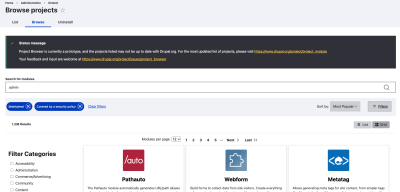

What is Project Browser & How to Use it in Drupal 10?
Finding and installing contributed modules and themes in Drupal can be a daunting task for newer users and developers who are just getting started. One of the most common challenges faced by these individuals is figuring out how to locate the right modules and determine which category they belong to. Installing these modules can also be a major pain point.
To address this issue, the Drupal community has delved deeper into the problem. The journey began with discussions on how to improve the process here, which eventually led to the development of a usable module for Drupal 10 called the Project Browser. This module aims to simplify the process of finding and installing modules and themes by providing a user-friendly interface directly within Drupal.
The goal of the Project Browser is to provide users with a seamless experience, eliminating the need to navigate away from their project to search for relevant modules or to learn how to install and configure them. Instead, all necessary details are conveniently accessible directly from the integrated browser page.
Here's how the Project browser typically works:
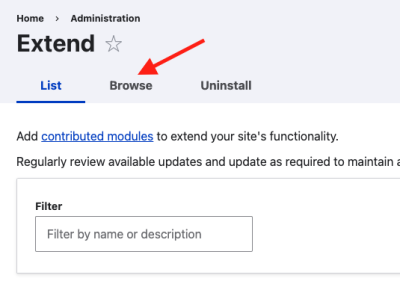
- Access: The Project browser can usually be accessed from the Extend page (/admin/modules) of a Drupal site.
- Search: Users can search for Drupal modules, themes, or libraries using keywords or by browsing categories.
- Installation: Once a desired project is found, users can select it and install it with a simple click.
- Dependency Resolution: The Composer Manager module handles resolving dependencies and downloading required packages automatically.
- Updates: The Project browser also typically provides information about available updates for installed projects, allowing users to easily update their site's modules, themes, and libraries.
Learn more about the Project Browser and its features on the official Drupal project page: Project Browser
Requirements :
- Install the beta version of the module from Drupal.org or via Composer using the command: composer require 'drupal/project_browser:^1.0@beta'.
- The Project Browser is compatible with Drupal 10 and higher versions only.
- Currently, nearly 1000 sites are actively using this module, with 19 open bugs. You can view the issues here.
Steps to Configure & Use :
- Install and enable the Project Browser module in your Drupal 10 site by either using composer or by placing the module folder inside /modules/contrib directory.
- Click on the "Extend" keyword in admin panel or navigate to /admin/modules page.
- Once the module "Project Browser" is enabled you will see a new tab called "Browse".
- Click on the "Browse" tab or navigate to /admin/modules/browse page.
- Here you will see list of everything you need and steps to configure & install.